1
Dvorak Layout
Dvorak Layout
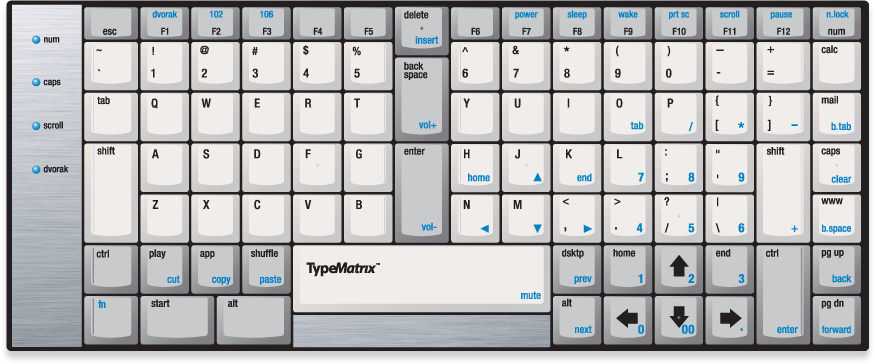
For US Dvorak, depress Fn and tap F1. To return to QWERTY layout, depress Fn and tap F1 again.
For more information about what Dvorak is, please see our Dvorak Page.
2
102-key Layout
102-key Layout
For all 102 key layouts (EU), depress Fn and tap F2. To return to QWERTY layout, depress Fn and tap F2 again.
The 102 key layout adds a common key used in European layouts. If the OS is configured for a European layout, the Play/Cut key in the bottom left section of the keyboard changes to the needed < or shifted > or Alt Gr |, all found on the 102 key. While those users choosing this mode lose access to the Play feature, the Fn+Cut feature continues to operate as expected.
3
106-key Layout
106-key Layout
For 106 key layouts, depress Fn and tap F3. To return to QWERTY layout, depress Fn and tap F3 again.
The 106 key layout is used primarily for compatibility with remapping software. It changes the following 6 keys:
- The
Shuffle key becomes scan code 123/0x7B (Alt 4) - The
Desktop key becomes scan code 121/0x79 (Alt 2) - The
WWW key becomes scan code 112/0x70 (Alt F9) - The
Calc key becomes scan code 125/0x7D (Alt 6) - The
Backslash key is moved to where the Mail key used to be (scan code 43/0x2B - \ or |) - The key where the
Backslash used to be becomes scan code 115/0x73 (Ctrl Left Arrow)
This configuration is frequently used by people who use key remapping software, because it allows remapping of the former Shuffle and Desktop keys which would otherwise not be reprogrammable hardcoded key combinations.
4
Mac Layout
Mac Layout
For Mac layout mode, depress Fn and tap F4. To return to QWERTY layout, depress Fn and tap F4 again.
This mode switches the Start and Alt keys on the left side of the keyboard. This brings the Option and Command keys in the expected order for Mac users.
To be explicit, in other layouts the keys are mapped as follows:
Start: Mac CommandAlt: Mac Option
In Mac Layout the keys are switched and mapped as follows:
Start: Mac OptionAlt: Mac Command
Unfortunately this cannot be combined with other layouts such as Dvorak, European 102 or Japanese 106 modes. Some users may get around this limitation by using key re-mapping software.
Other Mac functions that are available on all layers include the following:
Print Screen (Fn + F10) becomes F13Scroll Lock (Fn + F11) becomes F14Pause (Fn + F12) becomes F15Fn + F6 opens and ejects the CD- The
Ctrl key remains the Ctrl key
5
Colemak Layout
Colemak Layout
For US Colemak, depress Fn and tap F5. To return to QWERTY layout, depress Fn and tap F5 again.
Colemak is an alternate keyboard layout for touch typing English. It is relatively young, invented in 2006 by Shai Coleman and has seen increasing adoption.
6
Center Keys
Center Delete, Backspace, and Enter.
Use with either hand.
Being able to use these frequently used keys with either the left or right, strong index fingers contributes to healthier typing and removes these repetitive motions from the weaker right pinky.
The extra central column also separates the hands slightly, to promote better hand positioning.
7
Power Controls
Power Controls
The power buttons send the appropriate command to the computer as labeled, but keep in mind that the installed OS largely controls what actually happens when one of these buttons is pressed. For example in Windows, you can find these settings under Start > Control Panel > Hardware and Sound > "Change what the power buttons do". You can select various actions or no action at all.
8
Print Screen/Sys Req
Print Screen / Sys Req
- For
Print Screen: depress Fn and tap F10 - For
Sys Req: depress Fn + Left Shift and tap F10
Please note: Because of the way the TypeMatrix 2030 operates the Fn key, the key combination to take a screenshot on Windows (which is Start + Print Screen) is:
Fn + Start + PrtSc
in that order (not Start + Fn + PrtSc as one may expect). This is true for all combinations involving the Fn key, but we're mentioning it here because of the common use of this combination.
Similarly, to take a screenshot of the current window only, the key combination is:
Fn + Start + Alt + PrtSc (or Fn + Alt + Start + PrtSc)
and not the expected Start + Alt + Fn + PrtSc.
9
Pause/Break
Pause / Break
- For
Pause: depress Fn and tap F12 - For
Break: depress Fn + Left Shift and tap F12
Please note: Because of the way the TypeMatrix 2030 operates the Fn key, the key combination to open System Properties on Windows (which is Start + Pause) is:
Fn + Start + Pause
In that order (not Start + Fn + Pause as one may expect). This is true for all combinations involving the Fn key, but we're mentioning it here because of the common use of this combination.
10
NumLock
NumberPad
The Num key activates and locks the embedded NumberPad on the keyboard into place, lighting up the "num" LED on the left side of the keyboard. The Fn + N.Lock key sends an actual Num Lock Toggle command to the computer.
One of the features of the TypeMatrix 2030 is a fully functioning embedded NumberPad. It is activated and locked by tapping the Num key. This is a keyboard internal function only, and as such does not communicate with the computer at all (or require any cooperation from the operating system).
Because some of the NumberPad keys overlap the cursor controls, the cursor controls are shifted up and to the left on top of the "h j k n m ," keys, allowing full cursor control even in NumberPad mode.
Also note that the Back-Tab, Clear and Backspace functions on the right of the NumberPad also become activated as these are in common use in NumberPad/Spreadsheet contexts. However, the Page Up / Page Down keys remain as is, so they continue to be available in NumberPad mode.
It is worth mentioning that the NumberPad mode does NOT affect the other Function (blue labeled) keys like Cut, Copy and Paste, the top row of blue labeled keys, the media control keys or the "forward/backward" functions in the bottom right corner.
To temporarily escape NumberPad mode, the Fn key can be used to access the normal function of a given key. For example in NumberPad mode, Fn + : would produce the ":" character, and not the 8.
Because the TypeMatrix 2030 implements a NumberPad internally, it always expects the computer operating system to be in Num Lock mode. Most computers are configured to boot up as such or can easily be set to do so.
In case the user needs to tell the computer to switch into Num Lock mode if it is off for some reason, tapping Fn + N.Lock will send an actual Num Lock Toggle command to the computer. Most modern operating systems will even remember this change across reboots/shut-downs. This can be a common solution to situations where the NumberPad keys appear to be sending the wrong commands to the computer.
11
Calculator
Calculator
Opens Calculator.
Please note: in "106 key" mode the Calc key becomes "international 4" (scan code 125/0x7D). This is used by some languages like Japanese as an additional key.
12
Email App
Email App
Opens default email application.
Please note: in "106 key" mode the Backslash key is moved to where the Mail key used to be (scan code 43/0x2B). This is used by some languages like Japanese as an additional key.
In NumberPad mode this key assumes the Back-Tab functionality.
13
Back-Tab
Back-Tab
Fn + Mail: Back-Tab.
Useful in spreadsheet or form contexts to move one field backwards.
This essentially sends a Shift+Tab command to the computer.
In NumberPad mode, the Mail key assumes the Back-Tab function.
14
Caps Lock
Caps Lock
Toggles Caps Lock mode, lighting up the "caps" LED as needed.
In NumberPad mode this key assumes the Clear functionality.
15
Clear
Clear
Fn + Caps: Clear. Used in calculator applications to clear the current value.
In NumberPad mode, the Caps key assumes the Clear functionality.
16
Web Browser
Web Browser Home Page
Please note: in "106 key" mode the WWW key becomes the "katakana" key (scan code 112/0x70). This is used by some languages like Japanese as an additional key.
In NumberPad mode this key assumes the Backspace functionality.
17
BackSpace
Backspace
Fn + WWW: Backspace.
For those users insisting on Backspace on the right side of the keyboard, this accommodates that request, while making it less convenient and thus encouraging the better ergonomic center Backspace.
In NumberPad mode, the WWW key assumes the Backspace functionality.
18
Right Control/Enter
Right Ctrl / Enter
Right Ctrl located on large, vertical key with tactile edge for easier touch-type locating.
In NumberPad mode, this key assumes the Enter functionality.
For those users insisting on Enter on the right bottom side of the keyboard, this accommodates that request since it is also available as Fn + Ctrl, while making it less convenient and thus encouraging the healthier Center Enter.
19
Page Up/Down & Browser Navigation
Page Up/Page Down and Web Browser Navigation
Page Navigation:
Pg Up: Moves page one screen upPg Down: Moves page one screen down
Web Browser Navigation:
Fn + Pg Up: Back - Navigates web browser Back one pageFn + Pg Down: Forward - Navigates web browser Forward one page
Page Up and Page Down keys are provided in a convenient, easy to locate place on the very bottom right corner of the keyboard, when reading long documents or web sites.
Additionally these keys provide easy web navigation when used with Fn, giving direct access to the Backwards and Forwards features of modern web browsers.
It is worth noting that these two keys are NOT affected by switching to NumberPad mode.
20
Cursor Controls
Cursor Controls
Default cursor controls are found on the bottom right side of the keyboard. Home and End are conveniently and intuitively positioned to the left and right of the Up Arrow.
In NumberPad mode, the cursor controls including Home and End are shifted up and to the left on top of the "h j k n m ," keys, allowing full cursor control even in NumberPad mode.
21
Embedded NumPad
Embedded, Full-Featured NumPad
One of the features of the TypeMatrix 2030 is a fully functioning embedded NumberPad. It is activated and locked by tapping the Num key. This is a keyboard internal function only, and as such does not communicate with the computer at all (or require any cooperation from the operating system).
Because some of the NumberPad keys overlap the cursor controls, the cursor controls are shifted up and to the left on top of the "h j k n m ," keys, allowing full cursor control even in NumberPad mode.
Also note that the Back-Tab, Clear and Backspace functions on the right of the NumberPad also become activated as these are in common use in NumberPad/Spreadsheet contexts. However, the Page Up / Page Down keys remain as is, so they continue to be available in NumberPad mode.
It is worth mentioning that the NumberPad mode does NOT affect the other Function (blue labeled) keys like Cut, Copy and Paste, the top row of blue labeled keys, the media control keys or the "forward/backward" functions in the bottom right corner.
To temporarily escape NumberPad mode, the Fn key can be used to access the normal function of a given key. For example in NumberPad mode, Fn + : would produce the ":" character, and not the 8.
Because the TypeMatrix 2030 implements a NumberPad internally, it always expects the computer operating system to be in Num Lock mode. Most computers are configured to boot up as such or can easily be set to do so.
In case the user needs to tell the computer to switch into Num Lock mode if it is off for some reason, tapping Fn + N.Lock will send an actual Num Lock Toggle command to the computer. Most modern operating systems will even remember this change across reboots/shut-downs. This can be a common solution to situations where the NumberPad keys appear to be sending the wrong commands to the computer.
22
Desktop
Show Desktop
Minimizes all open Windows/Applications and displays the desktop.
In 106 key mode the Desktop key becomes the "kanji" key (scan code 121/0x79). This is used by some languages like Japanese as an additional key.
This is also useful for those users wishing to use a key-remapper to assign a different function to this key. This is necessary because in normal layout mode, the Desktop key sends Start + D to the computer, which isn't a unique key code and thus cannot be re-mapped.
23
Media Player Controls
Media Player Controls
The TypeMatrix 2030 implements a full set of Media Player Controls.
Except for Play/Pause (using the Play key) all controls are accessed via a Fn key combination:
Play / Pause: PlayVolume Up: Fn + BackspaceVolume Down: Fn + EnterMute: Fn + SpacePrevious: Fn + DsktpNext: Fn + Alt
Please note: Unfortunately in 102-key mode the Play key is replaced with the needed "<" or shifted ">" or Alt Gr "|" for European layouts, meaning the Play/Pause functionality is not available in that alternative mode.
24
Shuffle Key
Shuffle Key
The Shuffle key is essentially a convenient shortcut for Alt + Tab, it toggles between the last two opened applications. If held, it will slowly cycle through all open applications.
Please note: in "106 key" mode the Shuffle key becomes the "hiragana" key (scan code 123/0x7B). This is used by some languages like Japanese as an additional key.
However this is also useful for those users wishing to use a key-remapper to assign a different function to this key. This is necessary because in normal layout mode, the Shuffle key essentially sends Alt + Tab to the computer, which isn't a unique key code and thus cannot be re-mapped.
25
OS Control Keys
OS Control Keys
On Windows:
- Windows Key:
Start - Windows Menu:
App - Windows Alt:
Alt
On Mac:
- Mac Command:
Start - Mac Option:
Alt - Note: in
Fn + F4 mode, these two keys are switched to produce the more common Mac arrangement.
26
Function Key
Function Key
Depress this key and tap any blue labeled key to access that function.
In NumberPad mode, the Fn key reverses the NumberPad functions back to the default black labeled keys.
27
Cut/Copy/Paste
Cut / Copy / Paste
Alternate Cut/Copy/Paste functions, useful in Dvorak and alternate layouts where C, V and X may be positioned in inconvenient places on the keyboard.
To use:
Fn + Play: CutFn + App: CopyFn + Shuffle: Paste
Please note: because almost no operating system properly implements the standard HID usage codes for Cut, Copy and Paste, we implement this function by actually sending the following key combinations to the computer:
Cut: Shift + DeleteCopy: Ctrl + InsPaste: Shift + Ins
Unfortunately, Mac OS does not implement these rather standard codes either, so as of now these functions are not available when the TypeMatrix is connected to a Mac.
28
Vertical Shift Key
Vertical Shift Keys
The TypeMatrix 2030 has easy to reach left and right, Vertical Shift Keys.
The vertical nature of the keys allows both hands to activate Shift without the usually required slight twist of the wrist (ulnar deviation) by enabling the pinky to reach Shift with a simple straight stretch on the home row.
Additionally both Shift keys have tactile embossing on the outside edge to assist in hand positioning when touch typing and thereby allowing the keys to only be single wide without any impact on functionality.
29
Alternate Layout LED
Alternate Layout LED
Lights up when Dvorak or non-standard (102-key, 106-key, Mac, Colemak) layout is active.
30
Scroll Lock LED
Scroll Lock LED
Lights up when Scroll Lock is active. Scroll Lock is largely not used anymore.
31
Caps Lock LED
Caps Lock LED
Lights up when Caps Lock is active. It usually means you hit the key by accident.
32
NumberPad LED
NumberPad LED
Lights up when NumberPad is active. Please Note: This does NOT represent Num Lock on the computer. Please see the section on NumberPad for a more detailed discussion on NumberPad vs. Num Lock.

 1
2
3
4
5
6
7
8
9
10
11
12
13
14
15
16
17
18
19
20
21
22
23
24
25
26
27
28
29
30
31
32
1
2
3
4
5
6
7
8
9
10
11
12
13
14
15
16
17
18
19
20
21
22
23
24
25
26
27
28
29
30
31
32